
Common Usage Challenges with iPad and Tablets for Seniors
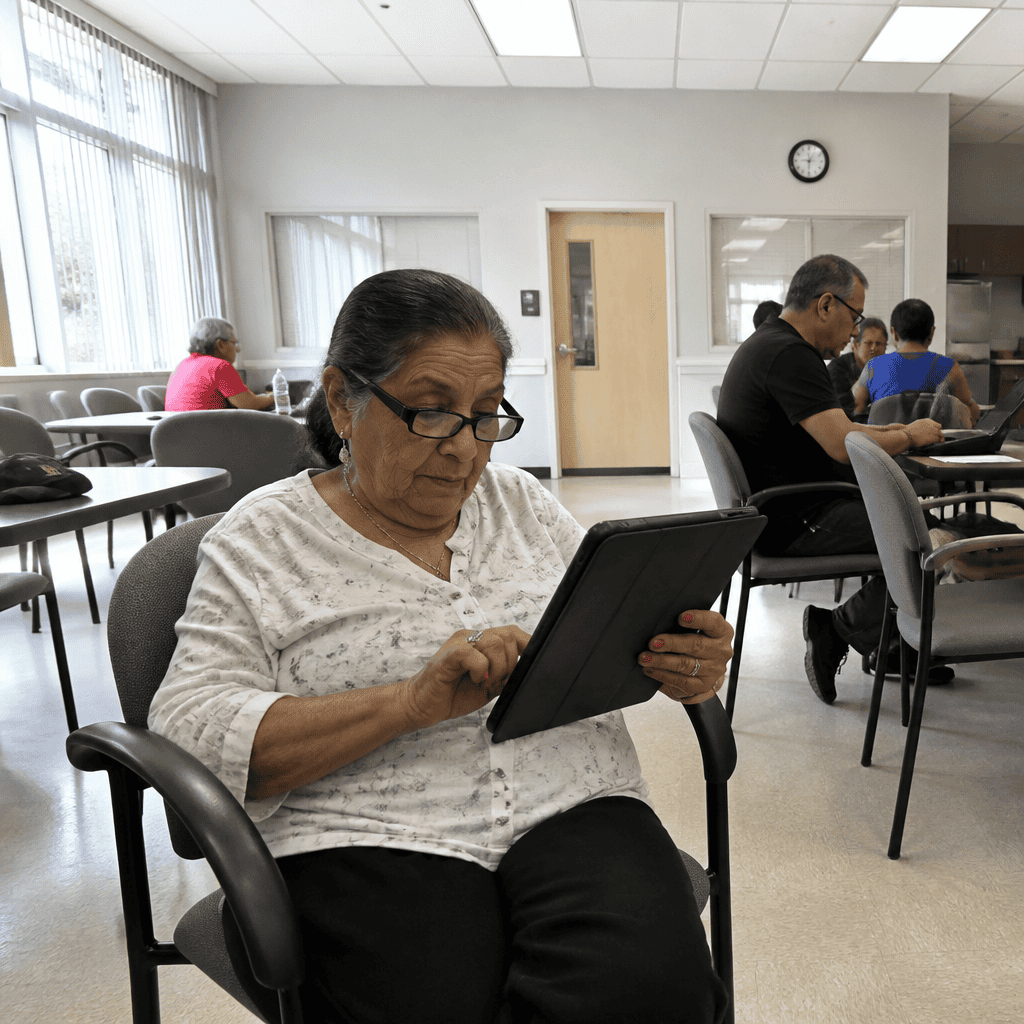
iPads and tablets have become essential digital tools for seniors, offering access to communication, entertainment, healthcare resources, and social connectivity. These devices, defined as portable touchscreen computers designed for easy media consumption and app usage, are increasingly adopted by older adults. However, seniors often encounter specific challenges or mistakes when using these technologies, which can impede their digital experience and cause frustration. According to Pew Research Center (2021), 61% of seniors aged 65 and older use a tablet or smartphone, but many report difficulties with device navigation, security, and settings customization. This article explores common mistakes seniors should avoid when using iPads and tablets, including underestimating device security, neglecting proper settings adjustments, and failure to utilize accessibility features. Understanding these issues and practical solutions will empower seniors to maximize their device use safely and effectively.
Neglecting Device Security and Privacy on Tablets Used by Seniors
Device security for seniors using tablets refers to the practices and settings that protect personal data and prevent unauthorized access. Cybersecurity expert Dr. Linda Thompson defines it as “critical safeguards embedded in device software and user behavior that prevent data breaches and privacy violations” (Thompson, 2023). Key characteristics include use of strong passwords, regular software updates, and cautious app installation. According to the AARP (2022), 45% of seniors reported falling victim to phishing or scams via mobile devices, highlighting the vulnerability tied to security negligence. Hyponyms related to this concept include password management, two-factor authentication, and secure Wi-Fi use. Addressing these security concerns creates a foundation that transitions naturally into optimizing device settings for better usability.
Password and Authentication Mistakes
Many seniors make the mistake of using easily guessable passwords such as “1234” or “password,” which compromises their device’s security. Password management involves creating complex credentials, using passphrases, or employing password manager apps for convenience and security. Research from Cybersecurity Ventures (2023) indicates that weak passwords contribute to over 80% of data breaches on mobile devices. Two-factor authentication (2FA) adds an additional layer of security by requiring a secondary verification step, which is recommended for all accounts accessed via tablets.
Overlooking Software and App Updates
Neglecting updates is a common oversight by senior tablet users. Software updates often include security patches critical for protecting devices against new threats. The National Cybersecurity Alliance (2023) advocates for enabling automatic updates to minimize risks. Additionally, installing apps only from trusted sources like the Apple App Store helps prevent malware infections.
Ignoring Accessibility Features on iPads and Tablets by Seniors
Accessibility features refer to built-in options designed to enhance device usability for seniors with vision, hearing, or motor impairments. Apple defines these features as “tools that ensure everyone can customize the device experience to fit their individual needs” (Apple Accessibility, 2024). Important characteristics include voice control, screen magnification, closed captions, and hearing aid compatibility. A study by the American Foundation for the Blind (2023) found that 67% of seniors unaware of accessibility features reported difficulty reading text or navigating apps. Hyponyms in this domain include VoiceOver, Zoom, and AssistiveTouch, all of which improve engagement and comfort.
Vision-Related Accessibility Tools
Many seniors struggle with small onscreen text or icons. iPads offer Zoom, a screen magnifier, and VoiceOver, a screen reader that verbalizes interface elements. Utilizing these tools can significantly reduce eye strain and improve comprehension. The National Eye Institute (2022) recommends these features for seniors with age-related macular degeneration or other vision impairments.
Hearing and Motor Accessibility Options
Closed captions and mono audio support help seniors with hearing difficulties follow videos and audio content. AssistiveTouch allows users with limited motor skills to simulate gestures with simpler taps. Recognizing and activating these features prevents users from abandoning technology out of frustration.
Improper Customization and Ignoring User Interface Adaptations by Seniors
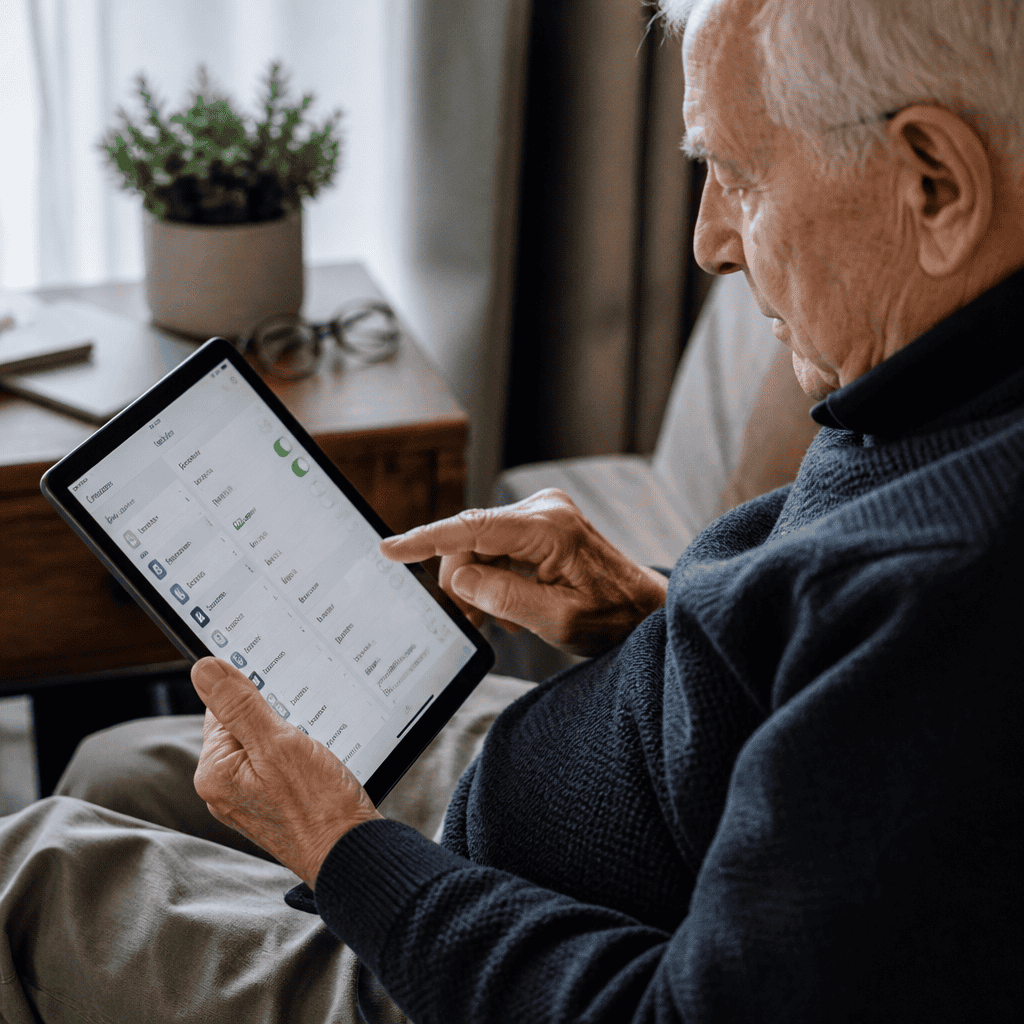
Customization involves tailoring device settings to fit personal preferences and physical needs, which greatly enhances user experience. According to TechSenior Journal (2023), the lack of interface adaptation is a primary reason seniors abandon tablets. Key characteristics include adjusting text size, configuring touch sensitivity, and organizing home screens for ease of access. Subtypes include UI simplification tools and widget customization. Linking this to security and accessibility emphasizes the holistic approach needed for effective tablet use.
Adjusting Display and Interaction Settings
Seniors often miss opportunities to increase text size or contrast, which can strain vision over time. Apple’s Display & Brightness settings allow users to enable dark mode, reduce transparency, and adjust color filters for comfort. Furthermore, touch accommodations optimize response for varying dexterity levels, reducing accidental taps.
Organizing Apps and Notifications
Another mistake is cluttering the home screen with too many apps or ignoring notification settings. Simplifying the layout with frequently used apps larger and disabling non-essential notifications decreases cognitive load and distractions. Studies by SeniorTech Insights (2022) show that clean interfaces improve usability and reduce abandonment rates.
Overlooking Learning Resources and Support Networks for Senior Tablet Users
Learning resources encompass tutorials, community classes, and online help designed to assist seniors in mastering tablet technology. According to the National Institute on Aging (2023), ongoing education significantly boosts confidence and device engagement among older adults. Support networks include family assistance, senior centers, and tech support services. These resources are often underutilized despite their proven benefits. This area logically follows device customization as education empowers better personalization and security awareness.
Formal and Informal Training Opportunities
Many communities offer free or low-cost workshops tailored to seniors. Online platforms such as Senior Planet and AARP provide tutorials covering basics to advanced features. Engaging in structured learning prevents misuse and accelerates proficiency.
Leveraging Family and Peer Support
Family members and friends play a crucial role in troubleshooting and teaching. Encouraging patience and step-by-step explanations can help seniors overcome initial technology anxiety. Peer learning groups have also demonstrated positive impacts on digital literacy for older adults.
Conclusion: Empowering Seniors through Awareness of Common iPad and Tablet Mistakes
This overview highlighted critical mistakes seniors should avoid when using iPads and tablets: neglecting security protocols, ignoring accessibility features, failing to customize device interfaces, and overlooking learning resources. Each of these elements is essential to creating a safe, comfortable, and productive digital environment. By addressing these areas, seniors can overcome barriers to digital inclusion, enhancing quality of life and independence. Stakeholders, including family members, caregivers, and technology providers, should promote education and support to facilitate this empowerment. For further action, seniors are encouraged to explore accessibility settings, update security measures regularly, and connect with local tech training programs to build lasting digital confidence.