

Understanding the Computer Desktop Interface for Seniors
The computer desktop is the primary visual interface of a computer, serving as the gateway for users to access files, programs, and settings. For seniors, becoming comfortable with the desktop environment is essential to enhancing digital literacy and fostering independence in an increasingly connected world. The desktop typically features elements such as icons, the taskbar, and wallpaper, which work together to provide an organized and accessible user experience. This guide explores the core components of the desktop, its key functions, and practical tips tailored to seniors, supported by relevant data on senior technology use and learning trends.
Characteristics and Components of the Computer Desktop Interface
The computer desktop, according to computer science expert Dr. Alan Cooper, is defined as “a graphical user interface metaphor that presents the environment of computer files as icons on a virtual desktop surface” (Cooper, 1995). This interface is characterized by visual elements such as icons, taskbars, menus, and background images that allow users to interact intuitively with digital content.
Key characteristics of a desktop interface include modularity, customization, and ease of navigation. For seniors, the ability to resize icons, adjust contrast, and organize files systematically can reduce cognitive load and improve accessibility. Statistics indicate that approximately 70% of adults aged 65 and older express a desire to learn more about computer use, underscoring the significance of desktop familiarity in digital inclusion (Pew Research Center, 2021).
Hyponyms related to the desktop interface include the “taskbar,” which hosts system notifications and shortcuts; “desktop icons,” representing programs and files; and the “start menu,” a common navigation hub in many operating systems. Understanding these components helps seniors grasp how different parts of the desktop interface interconnect to facilitate computer use.
Desktop Icons: Definition and Use
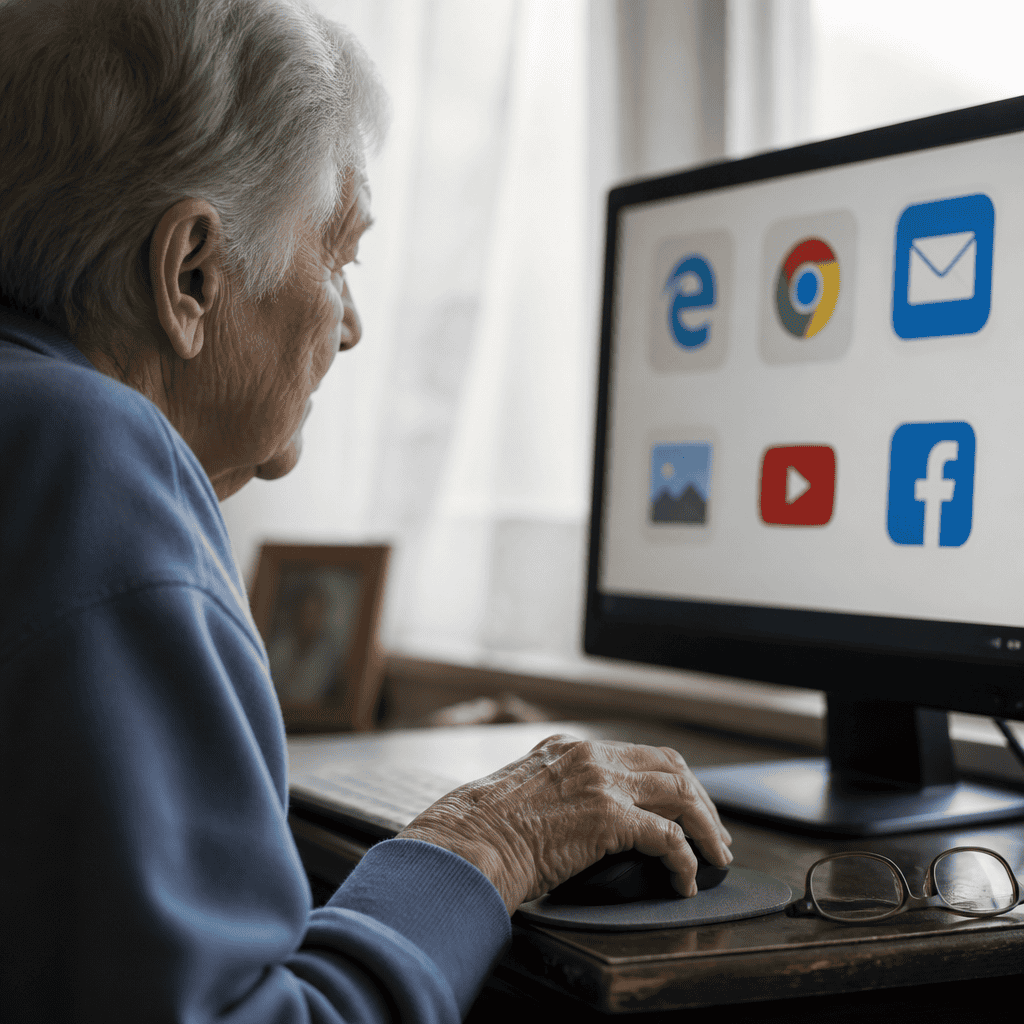
Desktop icons are small graphical representations of software applications, files, or system functions displayed on the computer screen. They serve as quick access points to open or execute specific programs without navigating complex menus. For seniors, clear labeling and the use of universally recognizable symbols can significantly enhance ease of use.
Research shows that icon-based navigation can improve task completion rates among older adults by up to 25% compared to text-based menus (Journal of Gerontechnology, 2019). Therefore, learning the function of common icons like “My Computer,” “Recycle Bin,” and “Internet Explorer” or browser shortcuts is foundational for desktop fluency.
The Taskbar: Functionality and Features
The taskbar is a horizontal bar usually located at the bottom of the desktop screen that displays open applications, system time, and quick access icons such as volume control and network status. It acts as both a navigational tool and a notification center. Familiarity with the taskbar allows seniors to switch between tasks efficiently and monitor system alerts.
A usability study from Stanford University revealed that older adults who received targeted training on taskbar functions reported a 30% increase in confidence when managing multiple applications (Stanford HCI Lab, 2020).
Personalizing the Desktop Environment
Customization options such as changing desktop wallpaper, adjusting icon size, and modifying display settings help tailor the computer interface to individual preferences and needs. For seniors, personalization can improve visual comfort and reduce frustration. According to the American Foundation for the Blind, contrast adjustments and larger fonts are critical for users with visual impairments, which are common in older populations.
Encouraging seniors to personalize their desktops can foster a stronger connection to their digital devices, making the learning process more engaging and meaningful.
Navigating the Desktop: Practical Tips for Senior Users
Beyond understanding interface components, effective navigation strategies are vital for seniors to confidently use their desktops. This includes learning basic mouse and keyboard operations, using accessibility tools, and managing files and folders.
Mouse and Keyboard Basics
Mastering the mouse and keyboard is a cornerstone of desktop interaction. Usage of techniques like click, double-click, right-click, and drag-and-drop are essential skills. Keyboard shortcuts, such as Ctrl+C for copy and Ctrl+V for paste, can streamline tasks. Organizations like AARP recommend structured tutorials focusing on these fundamentals to reduce intimidation and improve retention.
Accessibility Features
Modern operating systems offer a variety of accessibility features that support seniors, including screen magnifiers, voice recognition, and narration tools. According to the National Institute on Aging, these features reduce barriers to technology use and promote independence in daily digital tasks.
File and Folder Management
Organizing files into folders is a simple yet powerful way to keep the desktop uncluttered. Teaching seniors to create, rename, move, and delete folders helps avoid confusion and loss of important documents. The Digital Literacy Survey (2022) found that seniors who practiced file management experienced fewer frustrations and were more likely to use their computers regularly.
The Broader Implications of Desktop Literacy for Seniors
Desktop literacy not only enables seniors to navigate computers but also serves as a gateway to social connection, access to healthcare resources, and lifelong learning opportunities. The Pew Research Center reports that internet use among those aged 65 and older has grown from 14% in 2000 to 75% in 2021, demonstrating increased digital engagement.
By mastering desktop skills, seniors can engage in video calls, manage online banking, and participate in virtual communities, thereby improving quality of life and reducing social isolation. Community centers and libraries offering beginner-friendly computer classes play a crucial role in this educational effort.
Conclusion: Empowering Seniors through Desktop Familiarity
In summary, understanding the computer desktop interface—including icons, the taskbar, and personalization options—is pivotal for empowering seniors in their digital journey. Practical navigation skills such as mouse and keyboard use, accessibility feature engagement, and file management further enhance this empowerment. Given the rising importance of digital technology in everyday life, facilitating desktop literacy among seniors supports their social inclusion, autonomy, and access to vital services.
For further learning, seniors and caregivers are encouraged to explore resources provided by organizations like AARP, local community colleges, and public libraries offering tailored computer literacy programs. Embracing the computer desktop as a familiar environment is a foundational step toward bridging the digital divide and fostering lifelong engagement with technology.